Submit Property
Agents create listings with the Create Property action. The listing form is generated from your site’s Property Builder configuration, so the exact tabs and fields match what your administrator has set up. Sections marked admin-only are hidden from agents.
Fixed parts of the form:
- Title — required.
- Property type — required (single choice). Other core taxonomies: Property department, Property status, Property features, Property locations, Property tags, and Property badges.
- Price label options: None, Price On Call, Fixed Price, Guide Price, Offers Over (plus any custom labels your admin adds).
- Media: a featured image and an ordered gallery. Uploads accept JPEG, PNG, and WebP images up to 5 MB each.
How submission works:
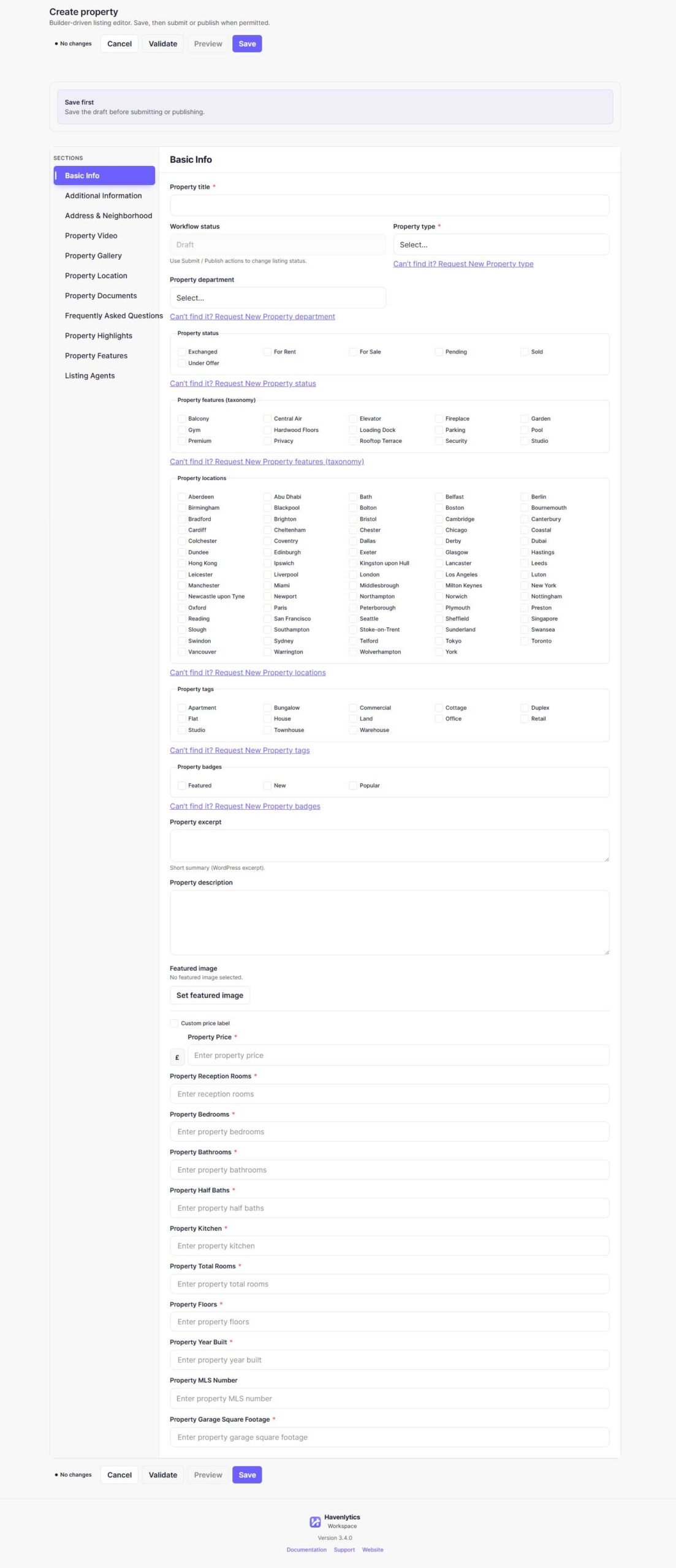
- Saving always creates a Draft first. You can save incomplete drafts; only title, property type, required Builder fields, and a non-negative price are validated for drafts.
- When ready, choose Submit. The listing moves to Pending and full validation runs.
- An administrator reviews the listing and approves (publishes) or rejects it.
- If rejected, the listing returns with the rejection reason. Edit it and resubmit.
Edit Property
Open any listing from the Properties list and choose Edit. Edits are saved as partial updates — saving an edit never publishes a listing by itself. The same validation rules apply as for submission.
Status transitions follow a fixed workflow: Draft → Pending or Published; Pending → Published, Draft, or Rejected; Published → Draft; Rejected → Draft or Pending. Media is managed on the listing itself: upload images, set the featured image, reorder the gallery, or remove images.
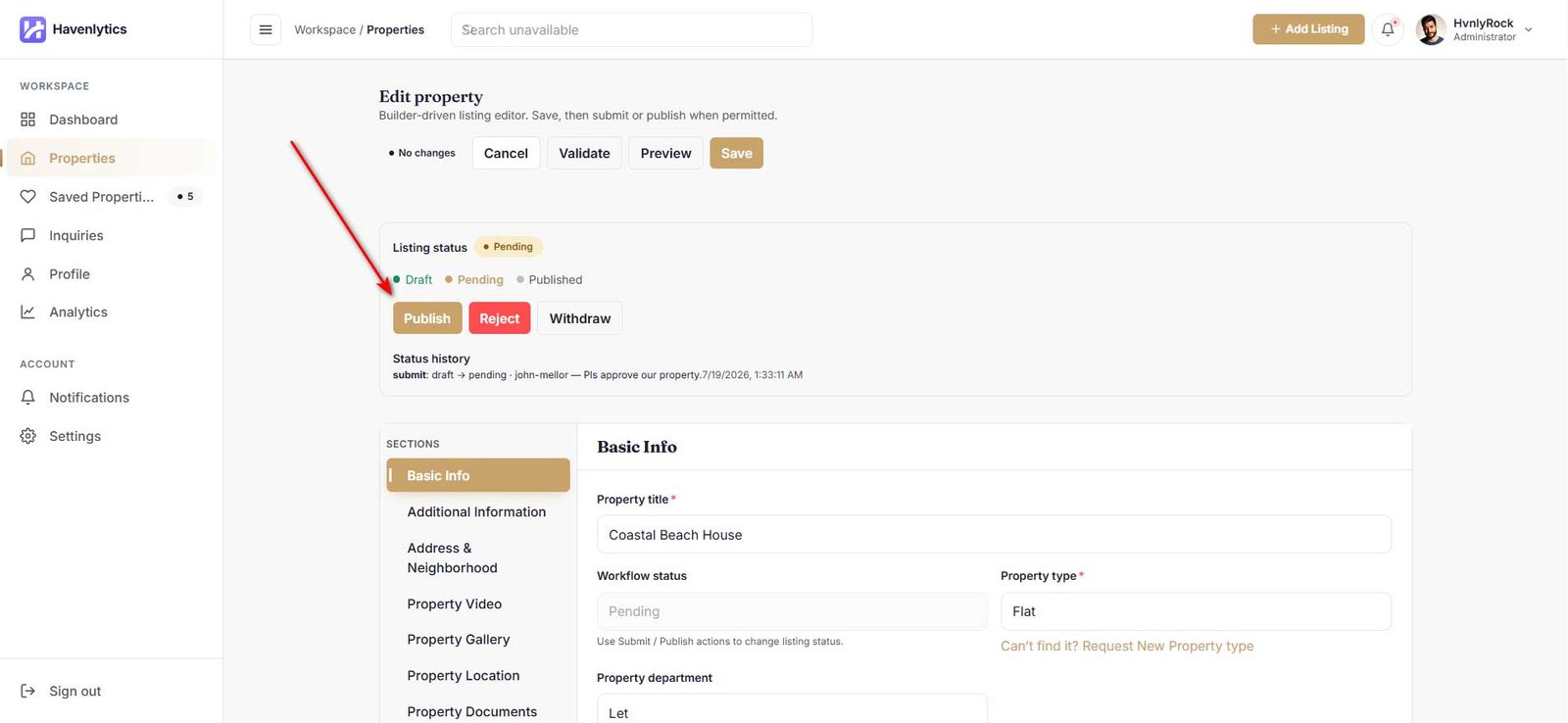
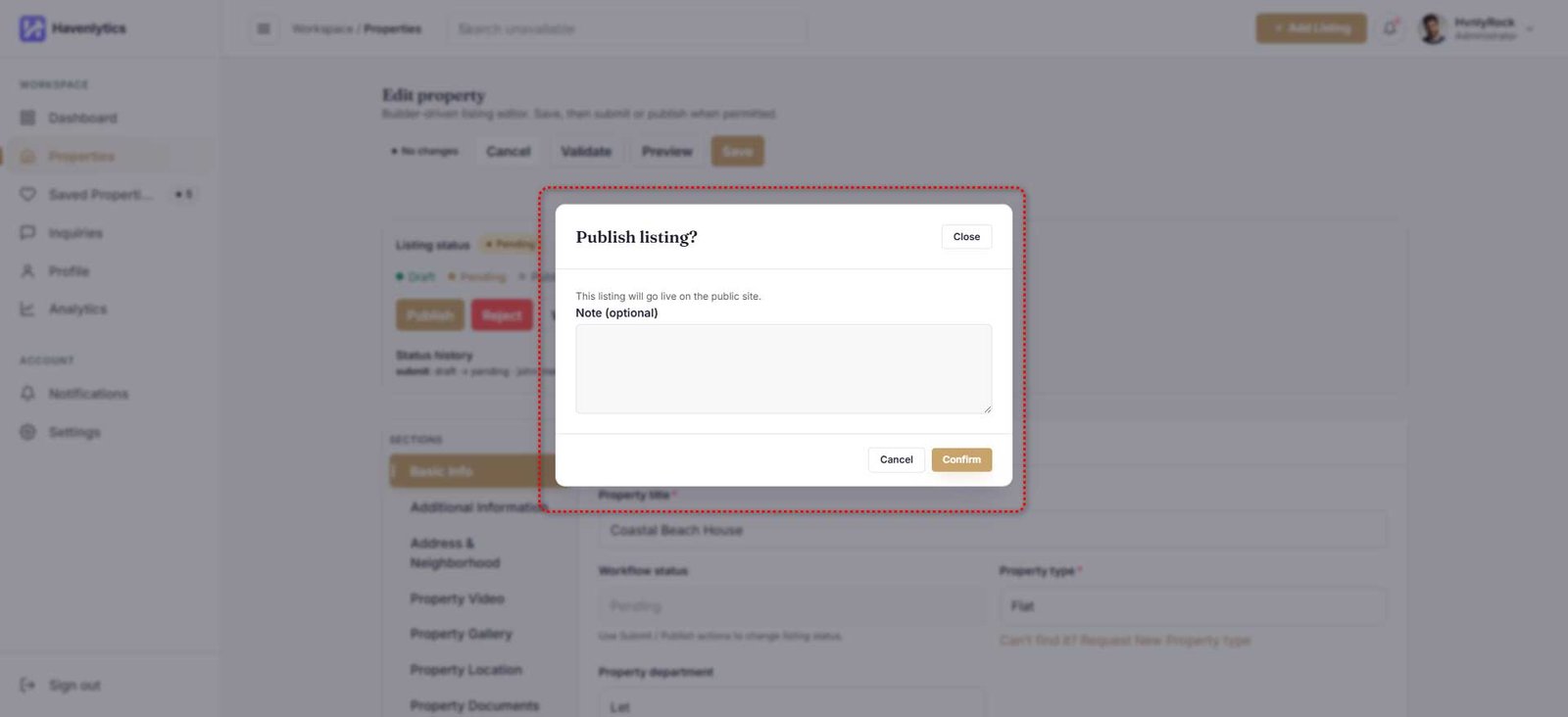
Direct publishing: if the Can Publish Property permission is enabled (it is off by default), agents skip the review queue and can publish directly.