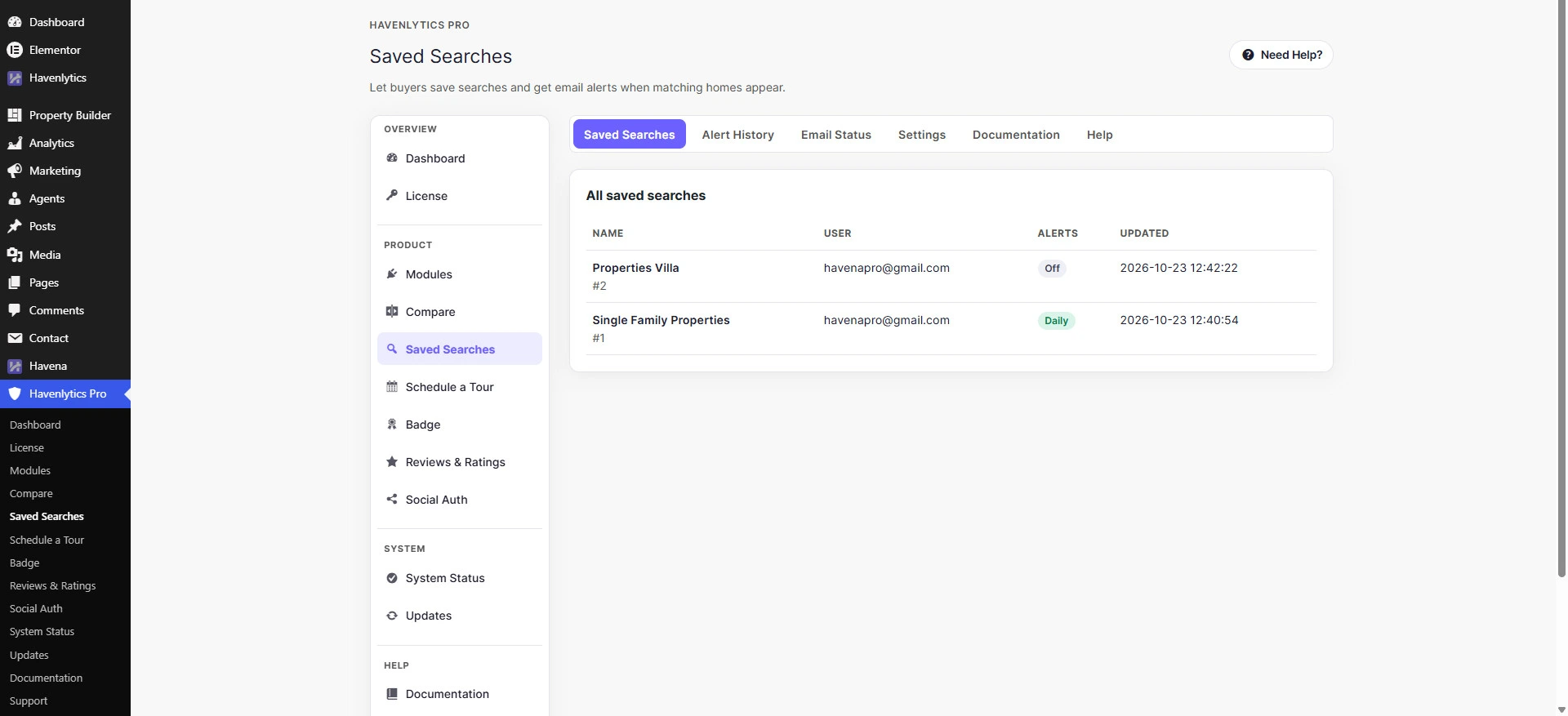
Saving and managing searches requires a signed-in visitor. Guests are asked to sign in. The product message is “Please sign in to save a search.”
Admin setup
- Open Havenlytics Pro → Saved Searches settings.
- Turn on Enable Saved Searches.
- Turn on Enable email alerts if mail should go out. The help text says to enable alerts and load the front end once so the hourly processor can schedule.
- Turn on Show “Save this search” on property search pages if the button should appear on search results.
- Set Default alert frequency to As soon as possible, Daily, Weekly, Monthly, or Alerts off by default.
- Create a page containing
[hvnly_saved_searches]and select it as Manage alerts page. That page is linked from alert emails. - Optional: Sender name, Sender email, and Email template (Default digest or Compact).
- Save settings.
Visitor check
- Run a Havenlytics search while signed in.
- Use Save this search.
- Open the manage-alerts page and confirm the search is listed.
- If no mail arrives, confirm Enable email alerts is on and the site can send mail. The module does not replace the host mailer. The Saved Searches help screen points to Alert History for failed or skipped rows.
Related: Saved Searches overview.