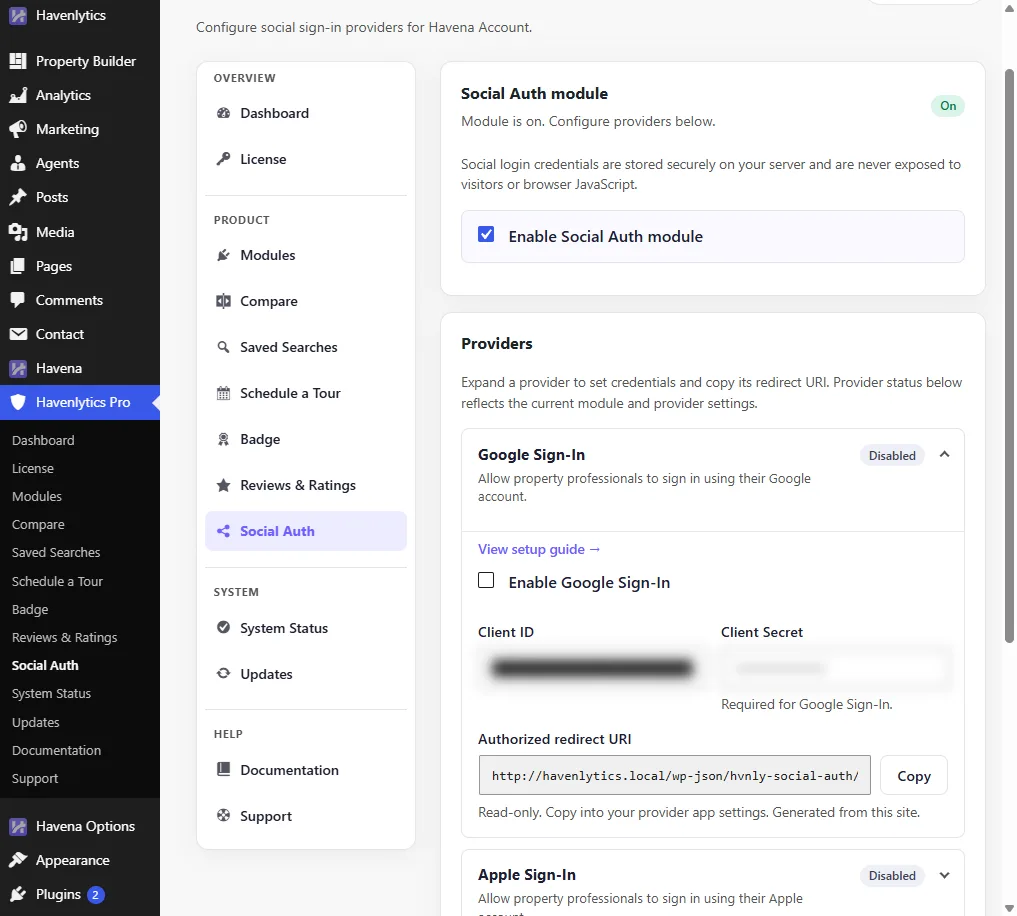
Social Auth needs Havenlytics 3.10.0 or newer and an active Havenlytics Pro license. Each provider has its own fields. Copy the redirect URI from this site. Do not paste secrets into a document or ticket.
Shared steps
- Open Havenlytics Pro → Social Auth.
- Turn on Enable Social Auth module.
- Under Providers, expand one provider. The help text says to set credentials and copy its redirect URI.
- Copy Authorized redirect URI. It is read-only and generated from this site. Paste that exact URI into the provider’s app settings.
- Save settings, then try the button while signed out.
Fields by provider
- Enable Google Sign-In — Client ID, Client Secret.
- Enable Apple Sign-In — Service ID, Team ID, Key ID, Private Key.
- Enable Facebook Login — Facebook App ID, Facebook App Secret.
- Enable X Login — X OAuth 2.0 Client ID, X OAuth 2.0 Client Secret.
Vendor consoles change their own click paths. This article only covers the fields on the Havenlytics Pro screen. A “View setup guide” link may appear beside a provider; follow that only if it is shown in your build.
Related: Social Auth overview.