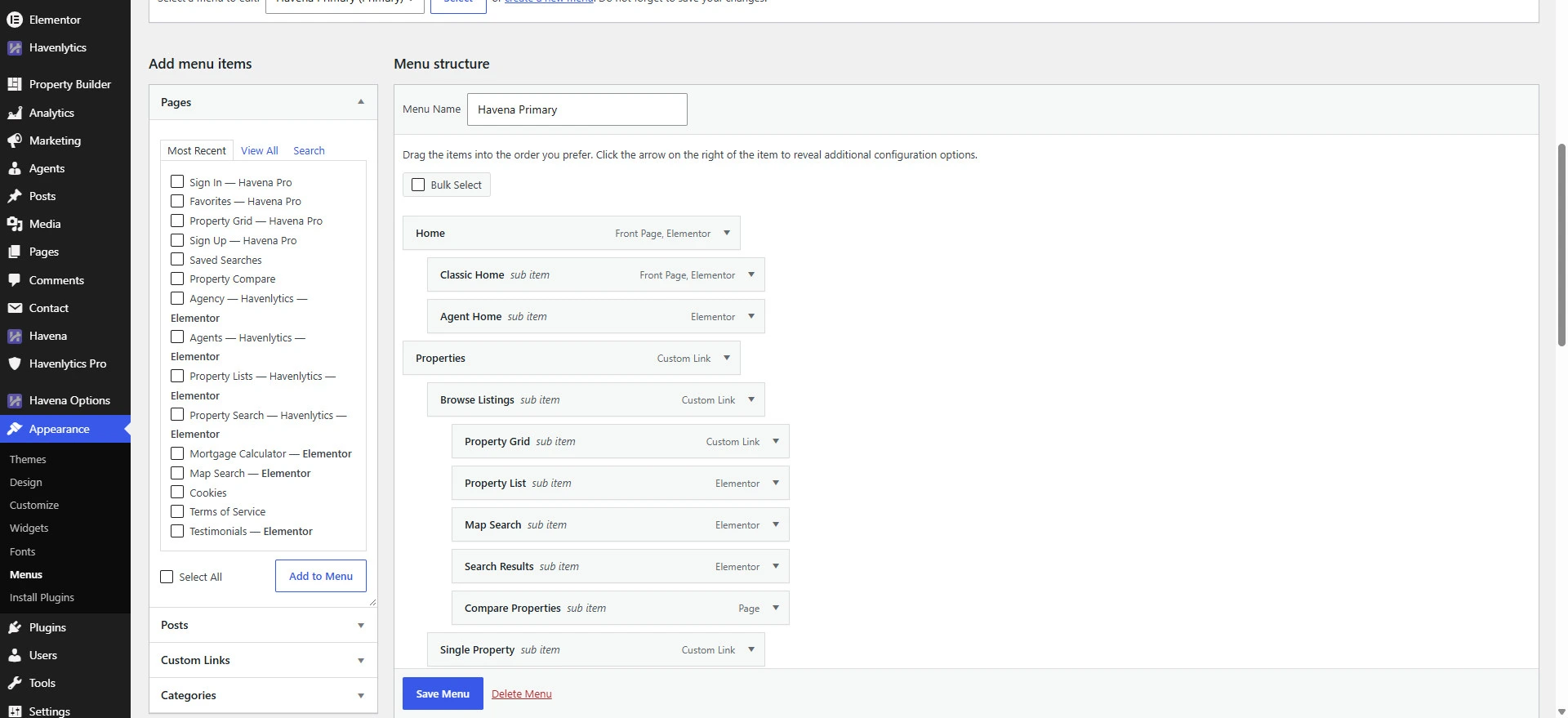
Havena registers three menu locations: Primary, Top Menu, and Footer. Demo import usually creates a menu named Havena Primary and assigns it to Primary. Changing Header presentation does not create a second menu.
Menu steps
- Go to Appearance → Menus.
- Edit the menu assigned to the location labeled Primary (often named Havena Primary after demo import).
- Add the links visitors need. Use real link text, not icon-only items.
- Open Havena Options → Theme Options → Mobile Navigation (Chrome group) to set drawer width, position, density, and which actions appear. Related drawer controls include Show My Account link, Show recently viewed, Show dark mode, and Show footer actions (Sign In and Add Listing).
- Open the site on a narrow viewport and use the header menu control. Havena does not publish a single pixel breakpoint in this setting, so check a phone-width window rather than a guessed width.
Mobile agent contact dock
That control is separate from the drawer. Open Havena Options → Layouts and use Enable Mobile Agent Contact Dock (Mobile agent contact dock) to show or hide the mobile agent contact bar on a listing. It does not replace the Primary menu.
There is no separate “accessibility mode” switch. Keep menu labels readable and preserve the Floating Contact accessibility label if you use that button.
Related: Header variants.