At some point, every real estate website outgrows manual listing entry.
You might be launching with three hundred properties already in a spreadsheet. Perhaps you manage a portfolio that turns over weekly and can’t afford to re-enter each change by hand. You may also need a clean, portable copy of your inventory for reporting, backup, or a project that has nothing to do with your website at all. In every one of these situations, the answer is the same tool: CSV import and export.
This guide covers what CSV import and export actually do, when to reach for them instead of manual entry, how to prepare a spreadsheet that imports cleanly, and the habits that keep bulk data management safe rather than risky. If you haven’t yet, How to Add Property Listings in WordPress is worth reading first — this guide assumes you already know what a well-structured listing contains; here we’re covering how to move many of them at once.
We use Havenlytics as the working example throughout, and we’ve been careful to describe only what’s actually confirmed about how its CSV import and export work — not what would be convenient to claim.
What Is CSV Import & Export?
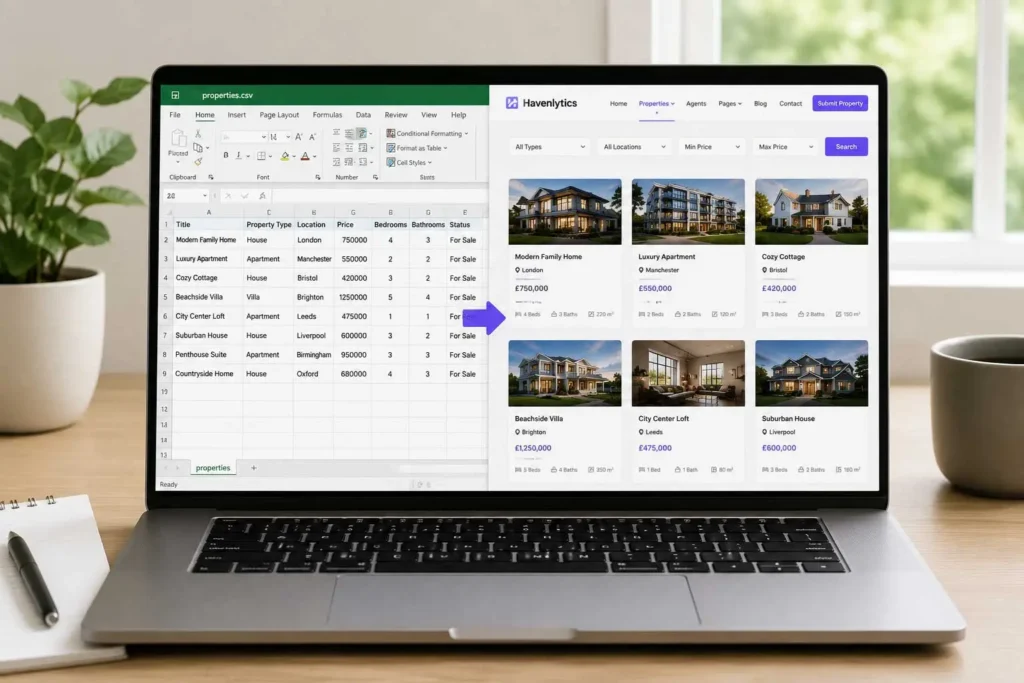
CSV stands for comma-separated values — a plain-text spreadsheet format where each row is a record and each column is a field, separated by commas. It’s the closest thing the software world has to a universal spreadsheet language: virtually every spreadsheet tool (Excel, Google Sheets, Numbers) can open, edit, and save CSV files, and virtually every system that handles bulk data — including WordPress real estate plugins — can read them.
Import takes a CSV file and creates or updates records in your website from it — in this context, property listings. Export does the reverse: it takes your existing listings and produces a CSV file you can open, analyze, or store elsewhere.
The appeal is simplicity. You don’t need to learn a proprietary format or a developer-only tool. If you can build a spreadsheet, you can prepare data for import — which is exactly why CSV has remained the standard bulk-data format for so long, even as more specialized tools have come and gone around it.
Why Real Estate Websites Need CSV
Real estate inventory doesn’t behave like blog content. It arrives in batches, changes status constantly, and often already exists somewhere else — an office spreadsheet, an export from another system, a hand-off from a property manager — before it ever reaches your website.
CSV import matches that reality. Instead of treating every listing as something that has to be typed into a web form one field at a time, it treats your inventory as what it usually already is: structured data that exists somewhere else and needs to move, intact, into your site.
Export matters for a different but related reason: portability. A CSV export gives you a copy of your listing data that isn’t locked inside your website — useful for backups, for handing data to a colleague, for analysis in a spreadsheet tool, or simply as an independent record that exists outside any single system.
Together, import and export turn your listings from something trapped in one interface into data you can move, back up, and reason about like any other business asset.
When Should You Use CSV Import?
CSV import earns its place in a few specific, recognizable situations.
Launching with existing inventory. If you’re setting up a new site and already have listings in a spreadsheet, importing them is faster and less error-prone than retyping each one manually.
Onboarding a large batch at once. A property manager taking on a new portfolio, or an agency adding a newly acquired book of listings, is adding volume in bulk — exactly the case CSV import is built for.
Regularly refreshed inventory from another source. If your listings originate somewhere else — an internal system, a partner feed exported to spreadsheet form — periodic CSV import keeps your site synchronized without manual re-entry each time.
Bulk corrections. If a systemic error affects many listings at once (a taxonomy renamed, a field that needs updating across dozens of properties), it’s often faster to export, correct the data in a spreadsheet, and re-import than to fix each listing individually.
For a handful of listings, or for properties that need careful, individual attention (rich descriptions, curated photo selection), manual entry — covered in our guide on adding property listings — is often still the better tool. CSV import is for volume and consistency, not a universal replacement for hands-on listing creation.
When Should You Export Listings?
Export deserves the same deliberate consideration as import, rather than being treated as an afterthought.
Before any major change. Before a migration, a bulk edit, or a significant taxonomy restructure, exporting your current listings gives you an independent snapshot you can fall back on if something goes wrong.
For reporting and analysis. A CSV of your listings — prices, statuses, locations — is often easier to analyze in a spreadsheet tool than by clicking through a website admin one listing at a time.
For sharing data outside your website. A partner, a colleague, or another system sometimes needs your inventory in a portable format rather than access to your WordPress admin.
As part of a regular backup habit. A periodic export is a lightweight, independent complement to your site’s regular backups — not a replacement for them, but a second, easily portable copy of your most business-critical data.
Preparing Your Spreadsheet
The quality of an import is decided before you ever open the import screen — it’s decided while you’re preparing the spreadsheet.
A few habits make the difference between a clean import and a frustrating one. Use one column per field, matching the structure your listings actually need — don’t combine price and status into a single cell, for instance, even if that feels efficient while building the sheet. Keep values consistent — the same wording for statuses (“For Sale,” not sometimes “For Sale” and sometimes “Active”), the same format for prices across every row. Remove blank rows and stray formatting left over from however the spreadsheet was originally built. Check for hidden characters or extra spaces, which are easy to introduce when copying data between systems and can cause a value to fail to match correctly even though it looks fine visually.
None of this is glamorous work, but it’s the highest-leverage step in the entire process. A messy spreadsheet produces a messy import no matter how good the import tool itself is.
Recommended Listing Fields
Just as a manually created listing needs a baseline of information to function properly, as covered in detail in our How to Add Property Listings in WordPress guide, a well-structured imported listing will typically include columns such as:
- Title
- Price
- Location
- Property type
- Status
- Size (square footage or equivalent)
- Bedrooms and bathrooms
- Description
- Key features
- Agent (who the listing should be assigned to)
Treat these as recommended fields, not a fixed requirement — your specific market or business model may call for additional columns matching custom taxonomies or fields you’ve configured. The principle carries over directly from manual entry: a complete listing performs better in search and builds more trust with visitors than an incomplete one, whether it arrived one field at a time or through an import of five hundred rows.
Mapping CSV Columns
Once your spreadsheet is ready, the import process asks you to match each column in your file to the corresponding field in your listing structure — your “Price” column maps to the price field, your “Beds” column maps to bedrooms, and so on.
This mapping step is worth doing carefully rather than rushing through, because it’s the bridge between your spreadsheet’s structure (which you control) and your website’s listing fields (which are fixed). A column named differently than expected, or a mapping selected in a hurry, is one of the most common sources of import errors — not because the import tool did anything wrong, but because the mapping told it to put data somewhere it didn’t belong.
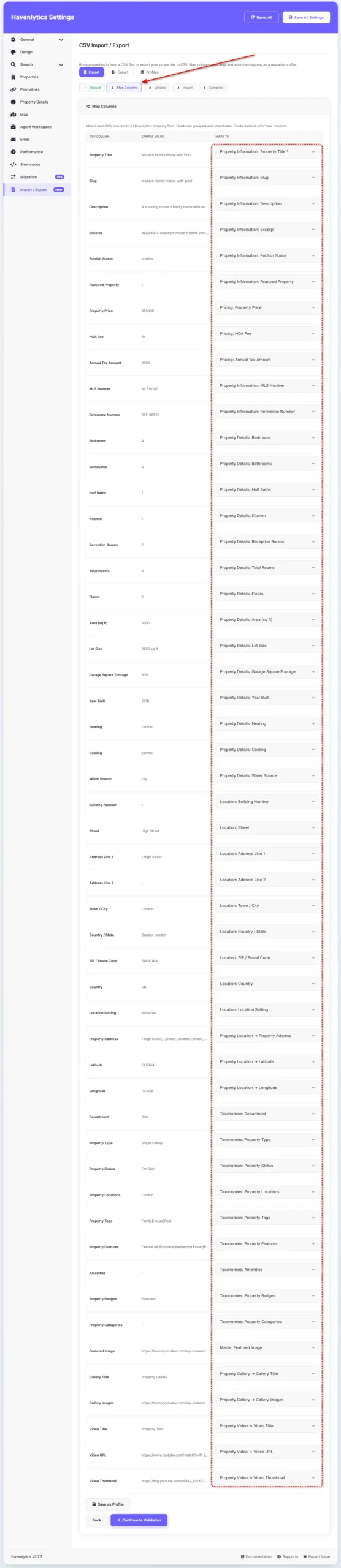
A good habit: after mapping, import a small test batch — five or ten listings — before committing your entire file. Reviewing a handful of imported listings against your original spreadsheet is far faster than discovering a mapping error after five hundred rows have already gone in.
Import Validation
Before and after an import, it’s worth checking your data carefully rather than assuming a completed import means a correct one.
Before importing, review your spreadsheet for the consistency issues covered earlier — matching value formats, no blank required fields, no obvious typos in fields like status or property type that need to match your site’s existing taxonomy values exactly.
After importing, spot-check a representative sample of the listings that came in. Compare a handful against your original spreadsheet, field by field, the same way you’d verify listings after a full site migration. Pay particular attention to fields that are easy to mis-map — price formatting, status values, and taxonomy assignments are the fields most likely to reveal a mapping problem when checked closely.
This verification step is manual, and it’s worth treating that as a feature rather than a limitation: a careful human review of a sample catches problems an automated pass might miss entirely, particularly ones caused by inconsistent source data rather than the import mechanism itself.
Handling Images
Images typically travel with an import through a reference — a column containing a URL or file path pointing to where each photo lives — rather than the image files themselves sitting inside the spreadsheet.
That means image handling starts before the import: your photos need to be hosted somewhere accessible, with consistent, correctly spelled references in your spreadsheet. A broken or mistyped image reference is a common, easy-to-miss cause of a listing importing successfully everywhere except its gallery.
Because the exact approach to referencing and importing images can vary depending on your setup, check the Havenlytics CSV Import & Export documentation for the current, specific guidance on structuring image data in your spreadsheet before a large import — it’s worth confirming the details directly rather than assuming.
Updating Existing Listings
CSV isn’t only for creating new listings — it’s also a practical way to update ones that already exist, particularly when a change affects many listings at once (a bulk price adjustment across a segment of your inventory, or a taxonomy value that needs correcting everywhere it appears).
The safest approach to bulk updates: export your current listings first, make your changes in that exported file rather than a fresh spreadsheet, and re-import. Working from an export of your actual current data — rather than a new file built from scratch — reduces the risk of accidentally creating duplicate listings instead of updating the ones you intended to change.
As with any bulk operation, test your update approach on a small sample before applying it across your full inventory, and keep a backup export from immediately before the update in case anything needs to be reversed.
Export Best Practices
A few habits keep exports useful rather than just a file that sits unopened:
Export before anything risky. A bulk edit, a migration, a major taxonomy change — export first, every time, so you have an independent point to return to.
Store exports somewhere separate from your website. A CSV export that lives only on the same server as your site doesn’t add much protection if something happens to that server.
Label exports with dates. A folder of files all named “listings.csv” is far less useful six months from now than a folder of files clearly dated, especially if you ever need to compare your inventory at two different points in time.
Review an export occasionally, not just when something’s gone wrong. An export is also a useful, plain-text way to sanity-check your data — scanning a spreadsheet of all your listings can surface inconsistencies that are harder to notice one listing at a time inside a website admin.
Common CSV Import Mistakes
- Inconsistent status or taxonomy values. “For Sale” in some rows and “for sale” in others may look identical to a person but can cause mismatches with your site’s actual taxonomy values.
- Skipping the test batch. Importing an entire file at once, without first checking a small sample, turns any mapping error into a much bigger cleanup job.
- Not verifying after import. A completed import isn’t the same as a correct one — spot-checking against the original spreadsheet is the step that actually confirms accuracy.
- Broken image references. Mistyped or inaccessible image paths are a common, easy-to-overlook reason a listing imports without its photos.
- Building a fresh spreadsheet for updates instead of exporting first. This significantly raises the risk of accidentally creating duplicate listings rather than updating existing ones.
- No backup before a bulk operation. The same discipline that applies to a full site migration applies here — back up before you import, not after something goes wrong.
How Havenlytics CSV Import & Export Works
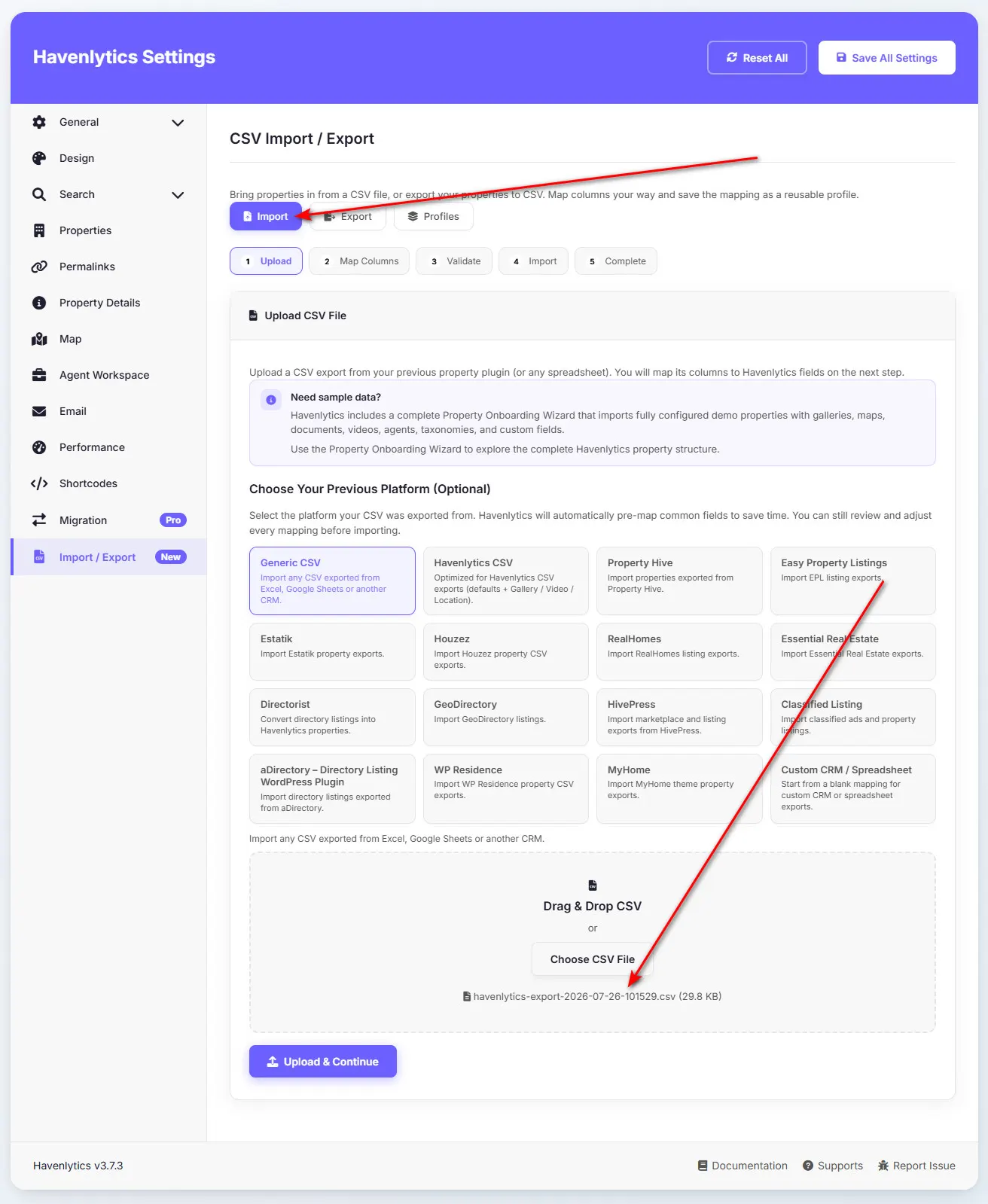
To stay precise about what’s confirmed: Havenlytics’ CSV Import & Export lets you bring listing data in from a spreadsheet by mapping your file’s columns to listing fields, and lets you export your existing listings out to a CSV file. That’s the core, confirmed capability, and it’s what every workflow described in this guide is built around.
We’ve deliberately avoided claiming specifics beyond that confirmed scope throughout this article — import speed, particular third-party spreadsheet formats, automatic duplicate detection, built-in validation beyond what a careful manual review catches, specific batch size limits, or scheduled/automated imports. Some of these may or may not be part of the current product; rather than guess, the accurate approach is to check the CSV import documentation directly for the current, authoritative detail on any of them before planning a large-scale import around an assumption.
What the guide above reflects instead is process: prepare your data carefully, map columns deliberately, test on a small batch, verify by hand afterward, and export before anything risky. That process holds regardless of exactly which specific technical capabilities a given version of the import tool includes — which is why it’s the right thing to teach, and why the documentation is the right place to confirm current specifics.
Conclusion
CSV import and export aren’t glamorous features, but they’re often the difference between a real estate website that can absorb real business volume and one that can’t. Manual entry works for a handful of listings; CSV is what makes hundreds of listings, bulk updates, and portable backups practical.
The technical mechanics are simple. The discipline around them — clean data, careful mapping, test batches, manual verification, exports before anything risky — is what actually determines whether a given import goes smoothly or turns into a cleanup project. Build that discipline once, and CSV becomes one of the most reliable tools in your ongoing listing management.
If you’re preparing for a bulk import, try CSV Import & Export with a small test batch first, or read the Havenlytics CSV Import & Export documentation for the current field reference and image-handling guidance. And once your inventory is imported and organized, the natural next step is making sure visitors can find it: continue to Property Search That Converts to see how your imported listings power search and filtering.
FAQ
What is CSV import used for on a real estate website?
Bringing property listings in bulk from a spreadsheet instead of entering each one manually — commonly used when launching with existing inventory, onboarding a large portfolio, or applying the same change across many listings at once.
What fields should my CSV file include for property listings?
A well-structured property CSV will typically include fields such as title, price, location, property type, status, size, bedrooms and bathrooms, description, key features, and the agent to assign the listing to. Your specific site may need additional columns for custom taxonomies or fields beyond this baseline.
How do I make sure my CSV import doesn’t create errors?
Prepare your spreadsheet carefully first — consistent value formatting, no blank required fields, correctly matched taxonomy values — then import a small test batch before your full file, and manually verify a sample of imported listings against your original spreadsheet afterward.
Can CSV import be used to update listings that already exist, not just create new ones?
Yes, and the safest approach is to export your current listings first, make your changes to that exported file, and re-import it — working from your actual existing data reduces the risk of accidentally creating duplicates instead of updating the listings you intended to change.
How do images work with CSV import?
Images are typically referenced in your spreadsheet through a URL or file path pointing to where each photo is hosted, rather than embedded directly in the file. Because the specifics of image handling can vary, check the current CSV import documentation before a large import that depends on getting galleries in correctly.
Should I export my listings even if I’m not planning a migration?
Yes — a periodic export is a lightweight, portable backup of your most business-critical data, useful for reporting, analysis, or simply having an independent copy of your inventory that doesn’t depend on your website being accessible.