Initial Setup Wizard (Quick Configuration)
After activating Havenlytics, the Setup Wizard will automatically launch to help you configure the essential settings and get your real estate website ready quickly.
You can skip the wizard by clicking “Close Wizard”, but we strongly recommend completing it for the best initial setup experience.
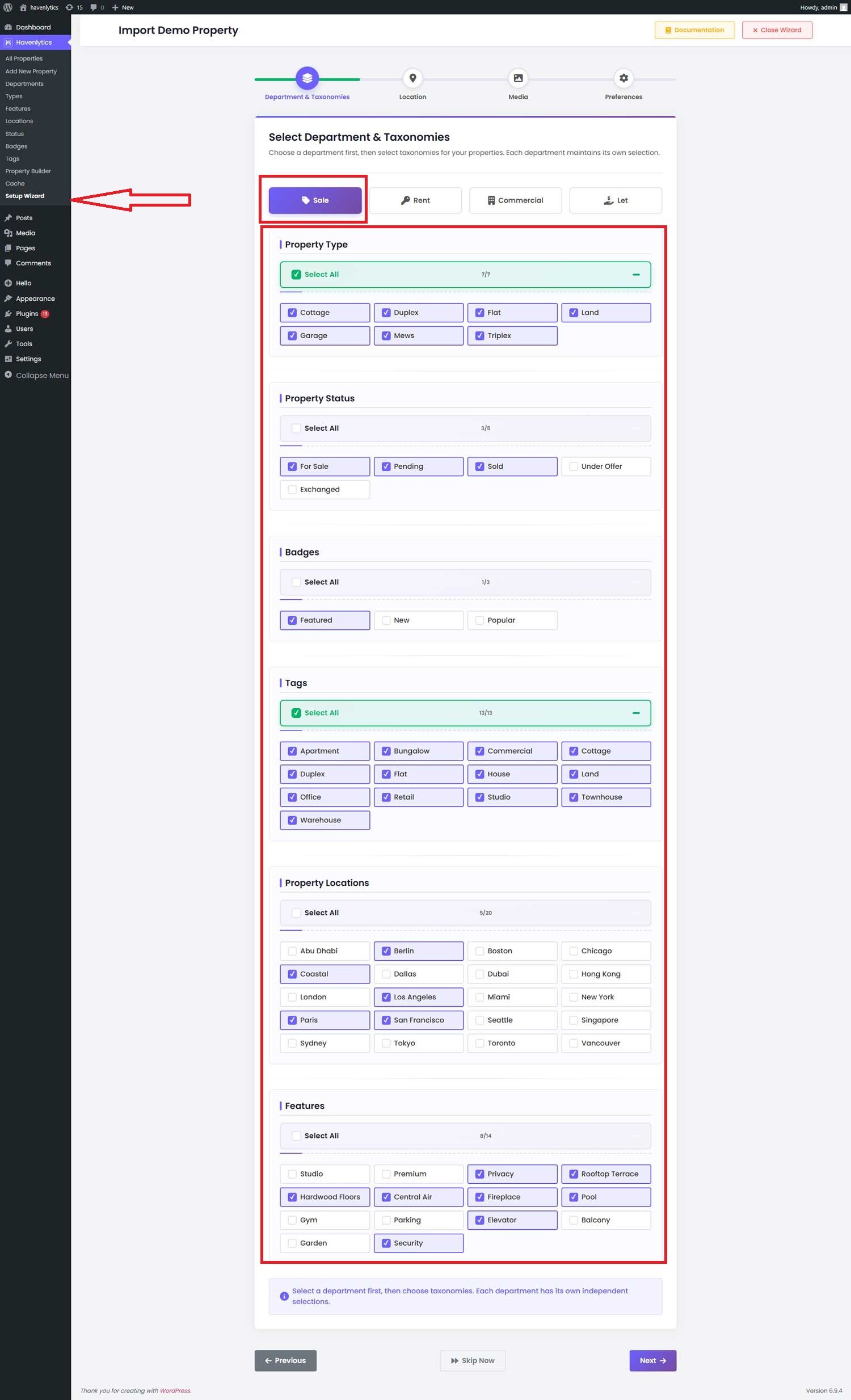
Step 1: Select Department & Configure Taxonomies
Begin by selecting a Property Department, then configure the taxonomies that will be used for your property listings. Each department works independently, allowing you to manage and organize different property types with full flexibility.
Havenlytics currently provides four departments: Sale, Rent, Commercial, and Let — each with its own dedicated taxonomy structure.
Choose a Department (Example: Sale)
Select the “Sale” department to start configuring your import settings. Once selected, you can define the following taxonomies for your properties:
- Property Type – Define listing types (e.g., apartment, villa, office)
- Property Status – Set availability status (e.g., available, sold, pending)
- Badges – Highlight listings with labels like featured or hot
- Tags – Add keywords to improve filtering and search visibility
- Property Locations – Assign geographic locations to listings
- Features – Select amenities such as pool, garage, garden, etc.
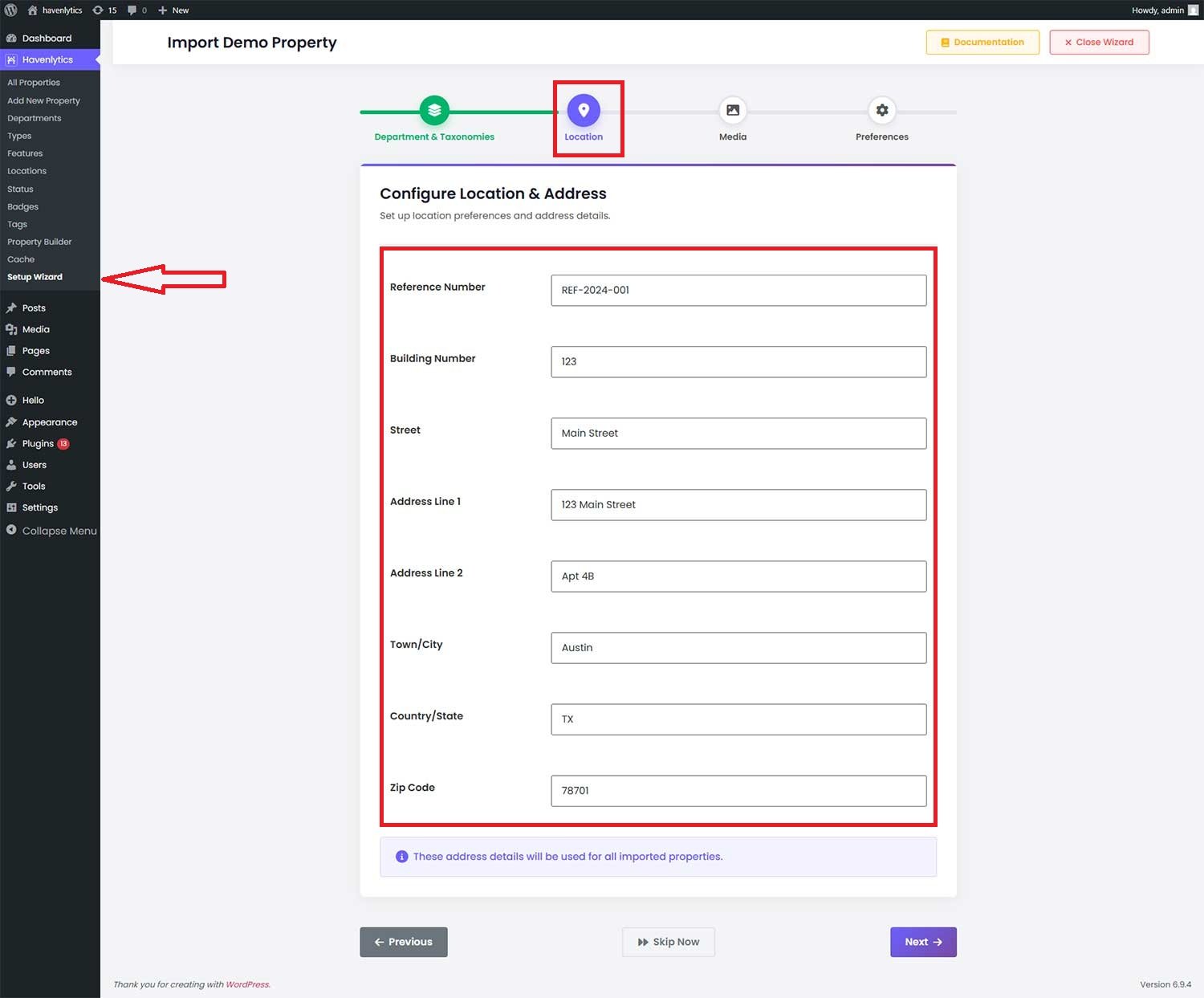
Step 2: Configure Location & Address
Set up the default location and address details that will be applied to all imported properties. This ensures consistency across listings and improves map accuracy, search results, and overall user experience.
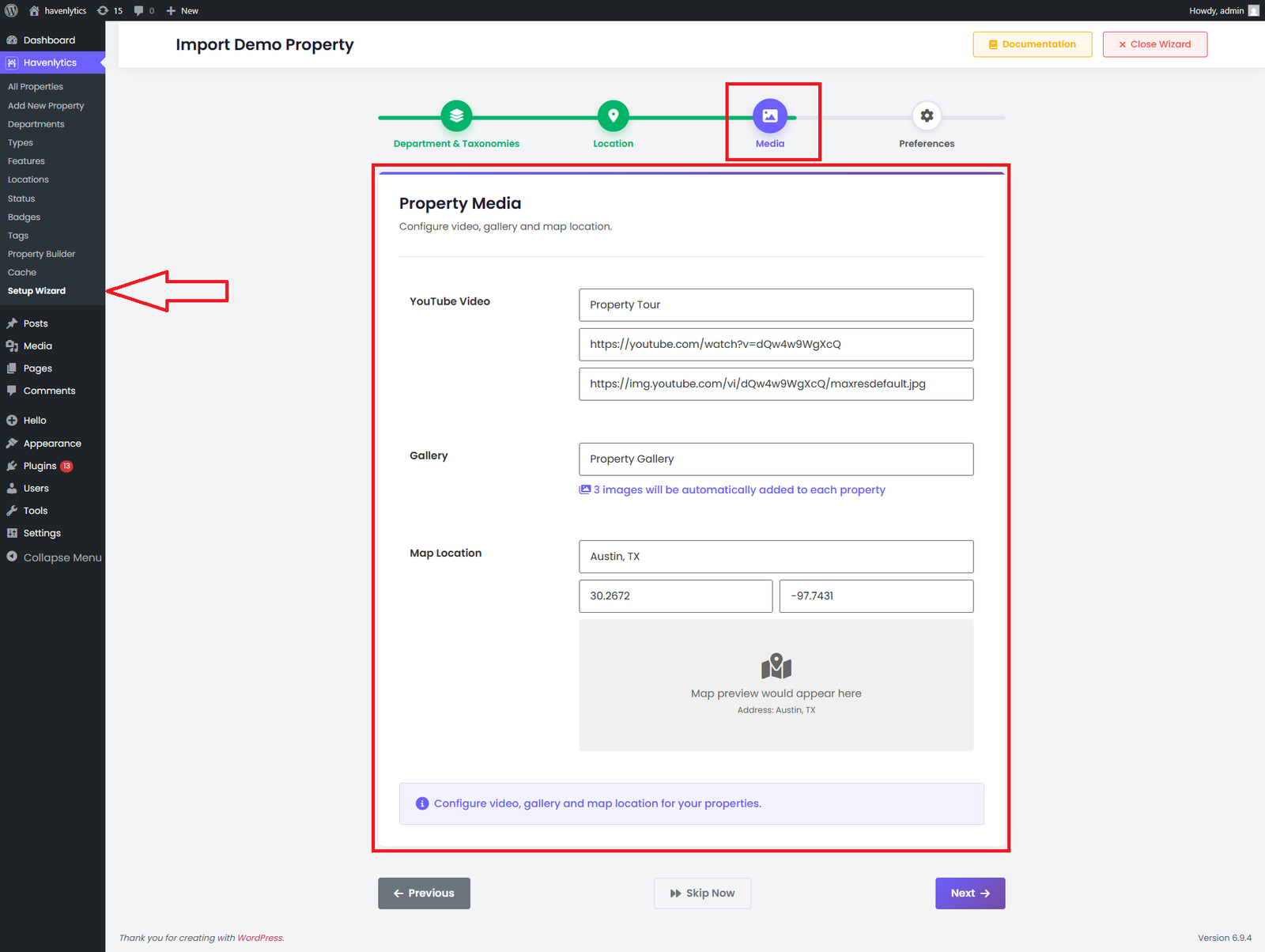
Step 3: Configure Property Media & Map Location
Enhance your property listings by setting up video, image gallery, and map location details. These media elements help create a more engaging and visually rich experience for your users.
Video Settings (YouTube/Vimeo)
Add a property tour video to showcase listings more effectively:
- Video Title: Property Tour
- Video URL: (e.g., YouTube or Vimeo link)
- Thumbnail Preview: Automatically generated from the video
Embedding videos allows visitors to explore properties visually, increasing engagement and conversion rates.
Property Gallery
Create a default image gallery for your imported properties:
- A set of 3 images will be automatically assigned to each property
- Images help highlight key features and improve listing presentation
Map Location Setup
Define the default map location for your properties:
- Location Name: (e.g., Austin, TX)
- Latitude: 30.2672
- Longitude: -97.7431
- Map Preview: Displays selected location on the map
- Address: Automatically linked to the map location
This ensures accurate map integration and geolocation display across all listings.
Step 4: Set Import Preferences & Start Import
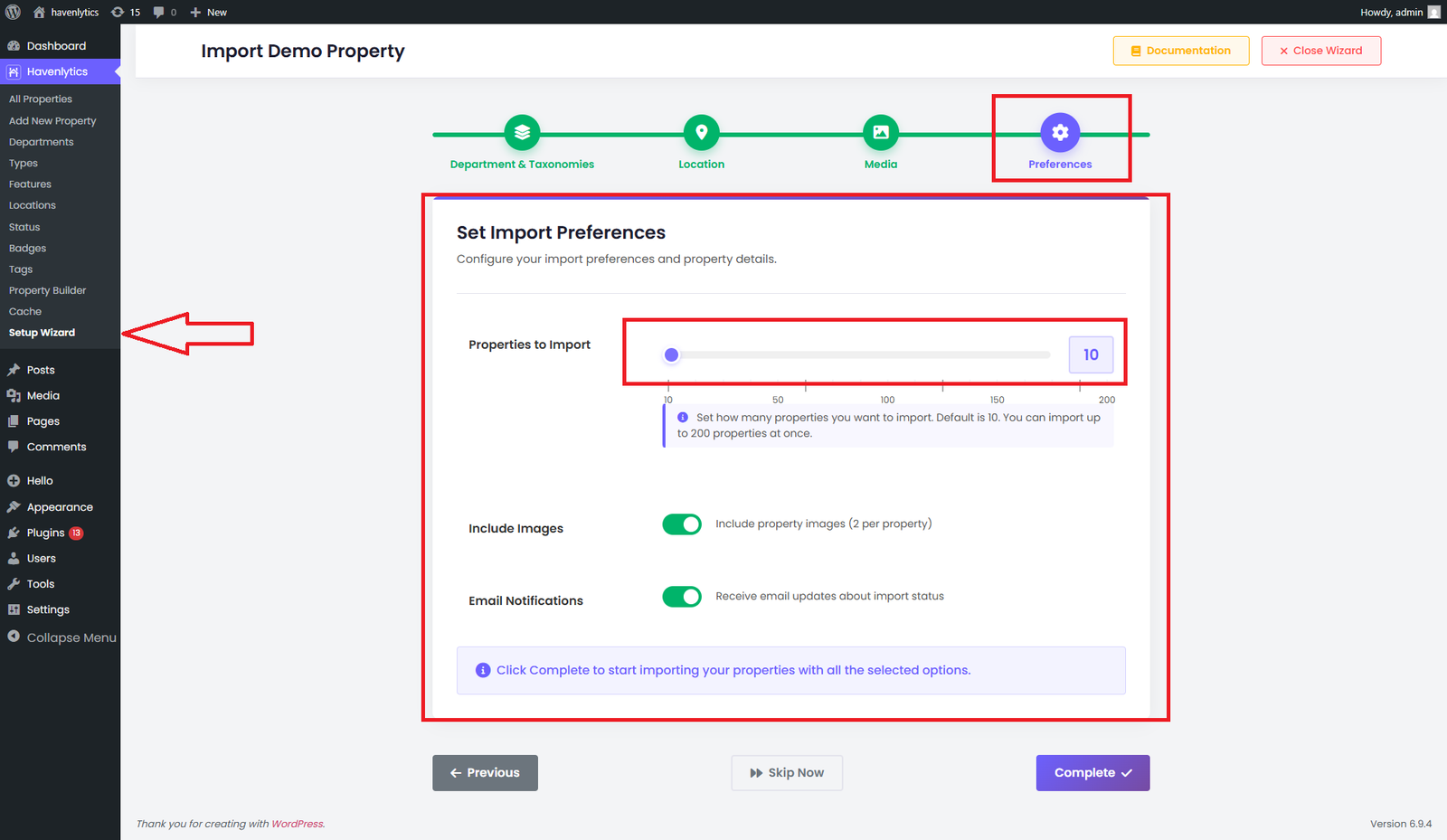
In this final step, configure your import preferences and define how your properties will be generated. This allows you to control the number of listings, media inclusion, and notifications before starting the import process.
Properties to Import
Choose how many properties you want to generate:
- Available options: 10, 50, 100, 150, or 200
- Default selection: 10 properties
- Maximum limit: Up to 200 properties per import
This helps you quickly create multiple listings for testing or launching your real estate website.
Import Options
- Include Images
Automatically add 3 images per property to create visually rich listings - Email Notifications
Receive updates about the import progress and completion status
Start Import
Once all settings are configured, click “Complete” to begin importing your properties with the selected options.
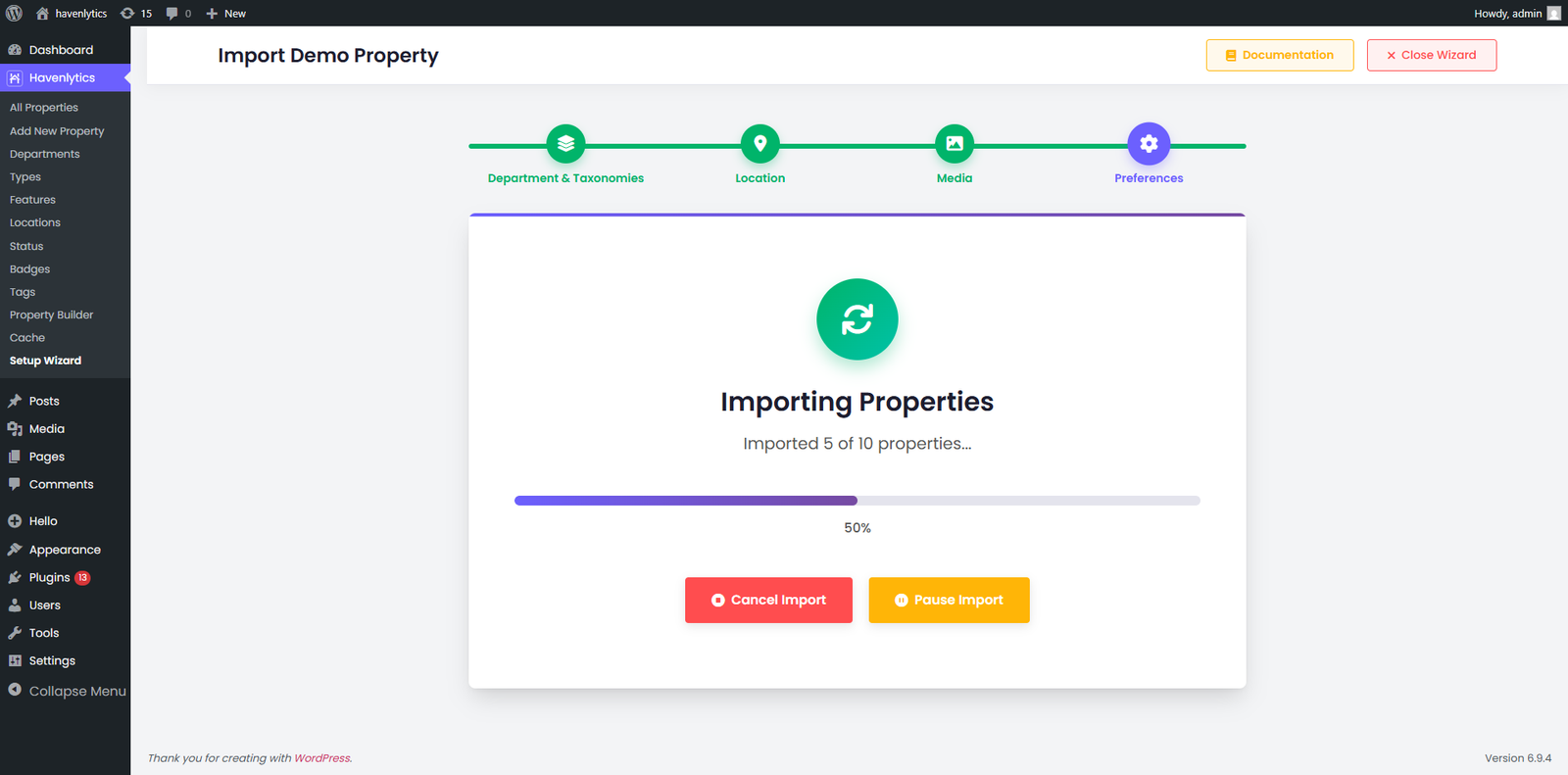
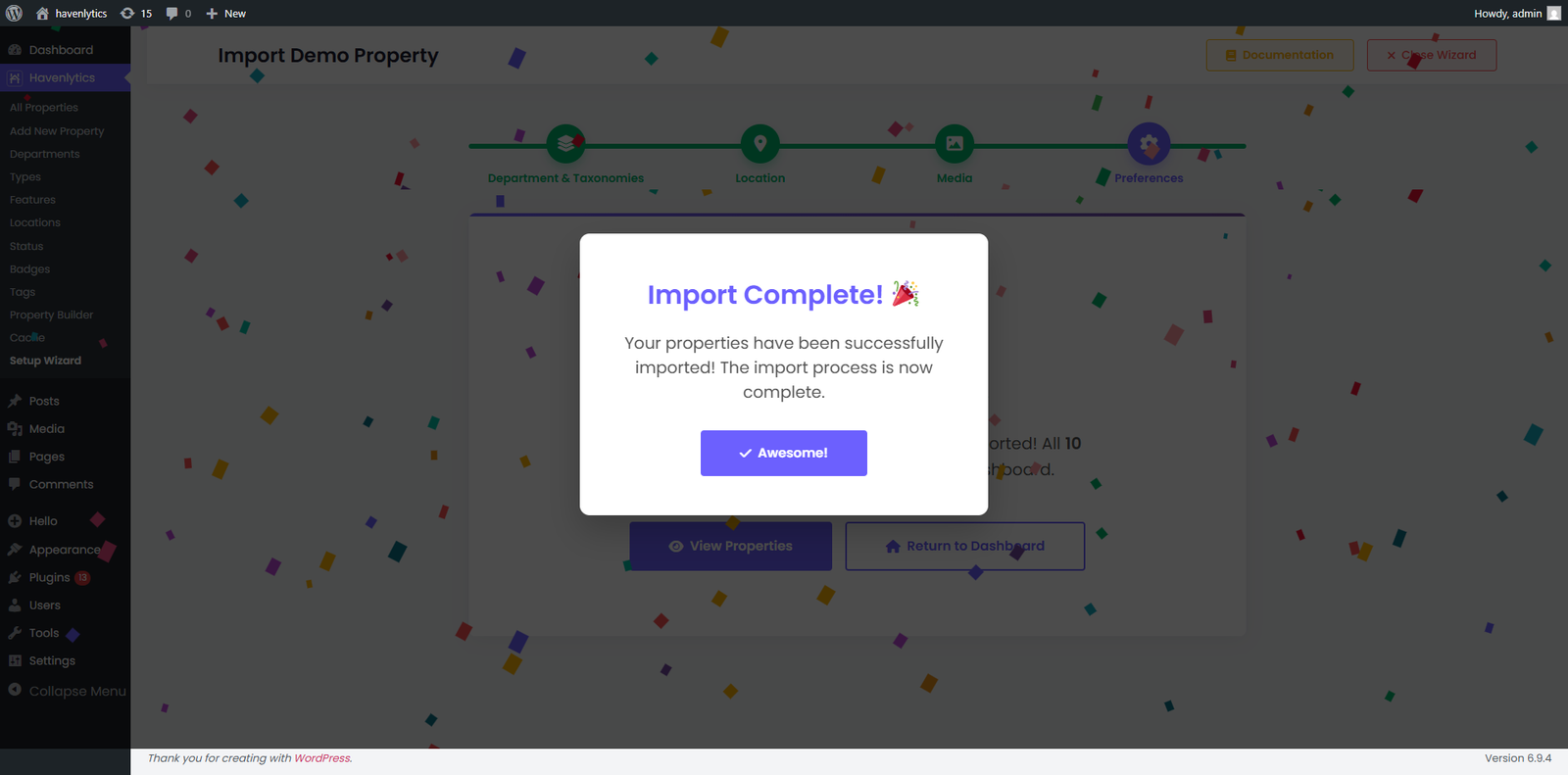
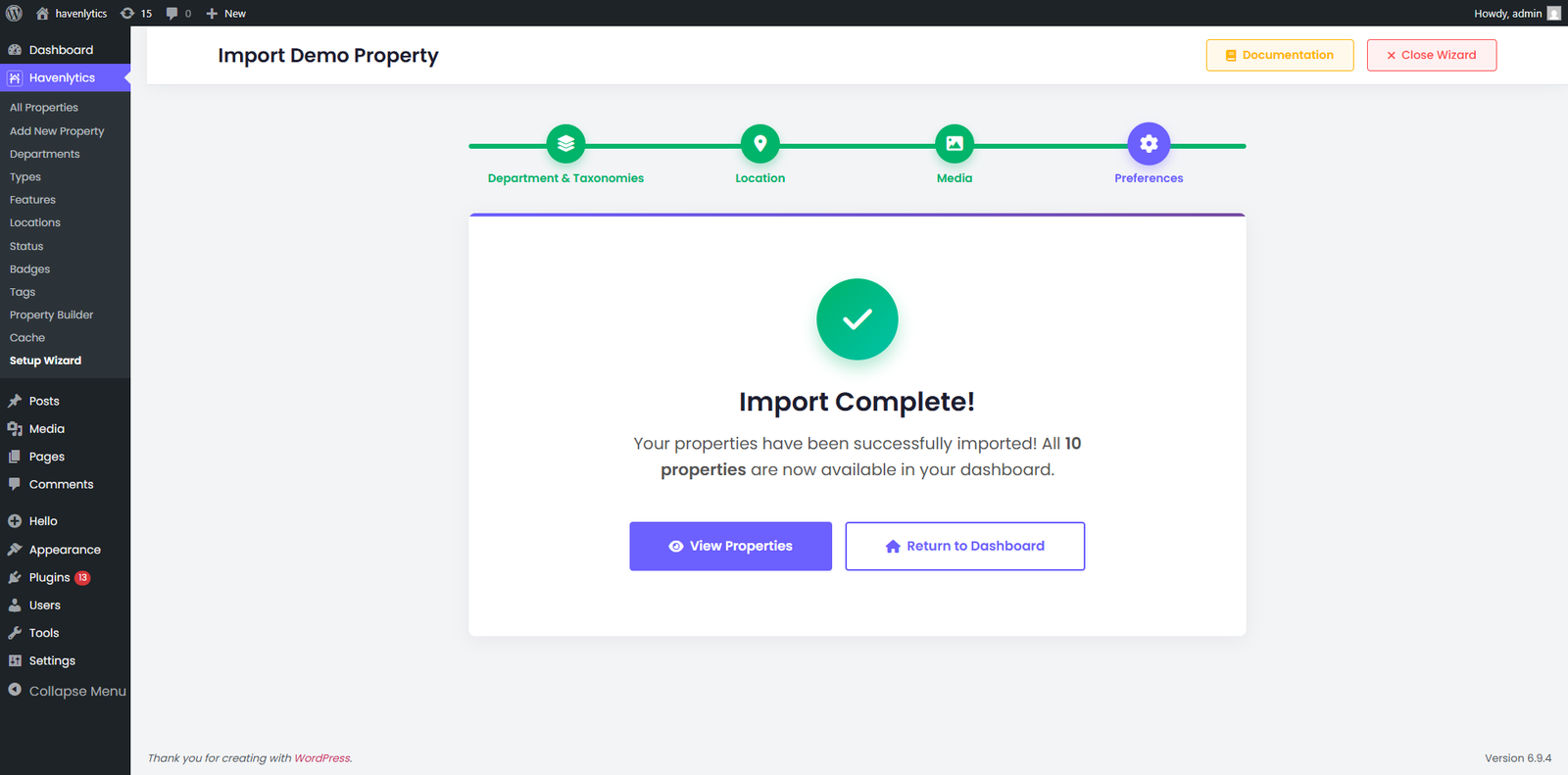
Once the import is complete, click “View Properties” to view all imported properties.
Step 5: Refresh Permalinks Final Step:
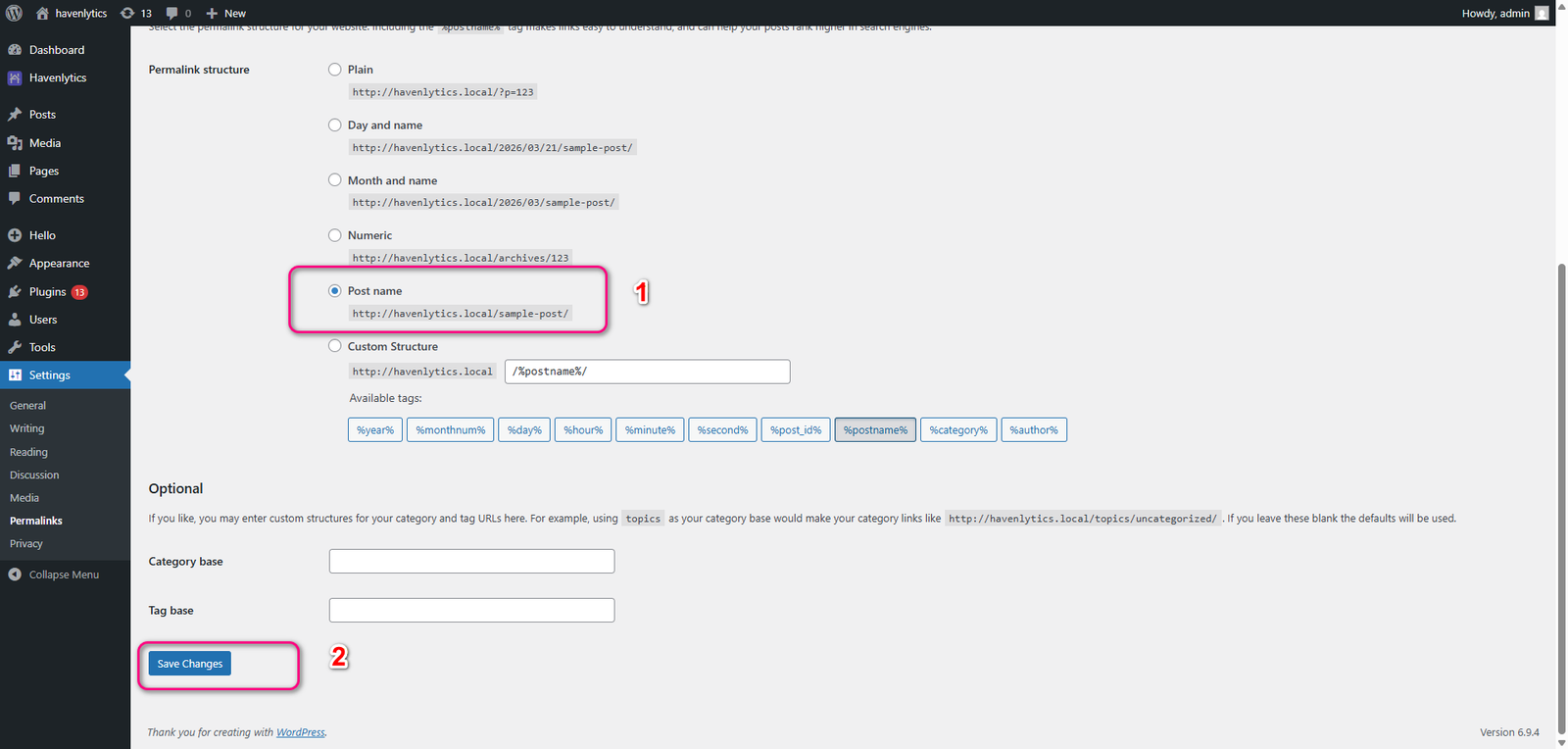
After completing all previous steps, navigate to Settings → Permalinks in your WordPress dashboard.
Select the “Post Name” option (if not already selected), then click the “Save Changes” button.